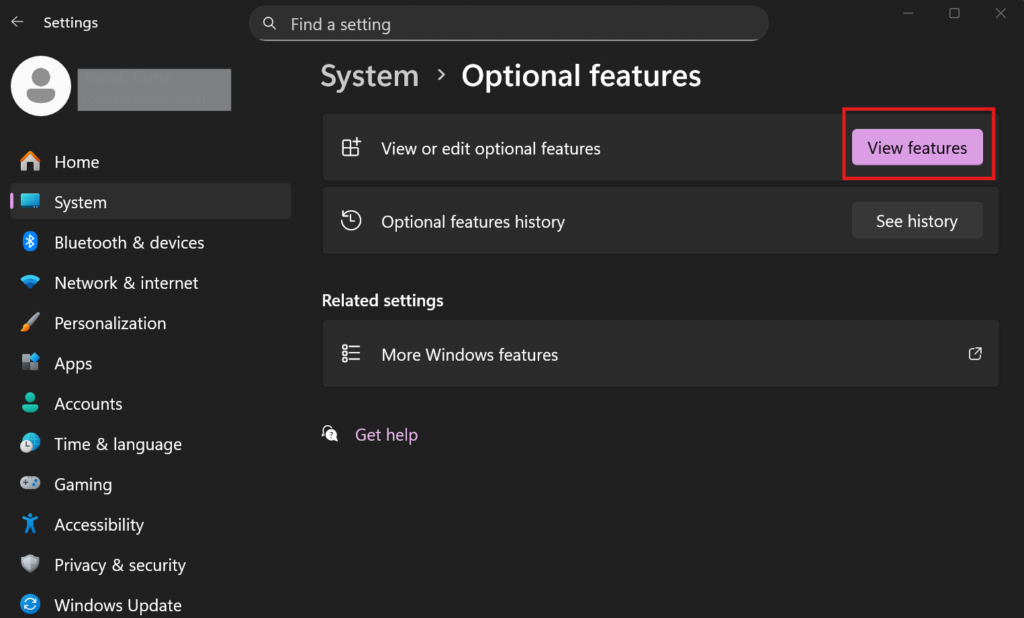
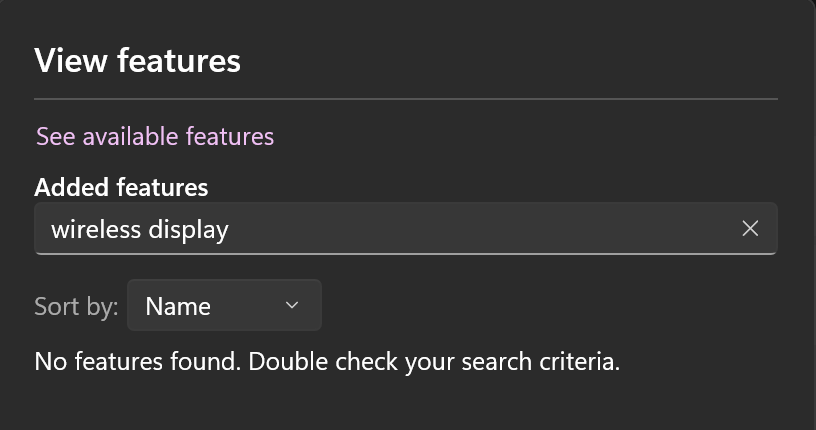
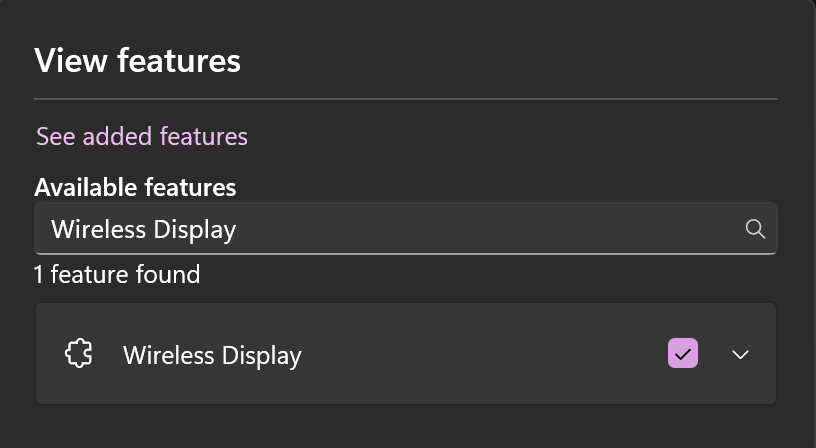
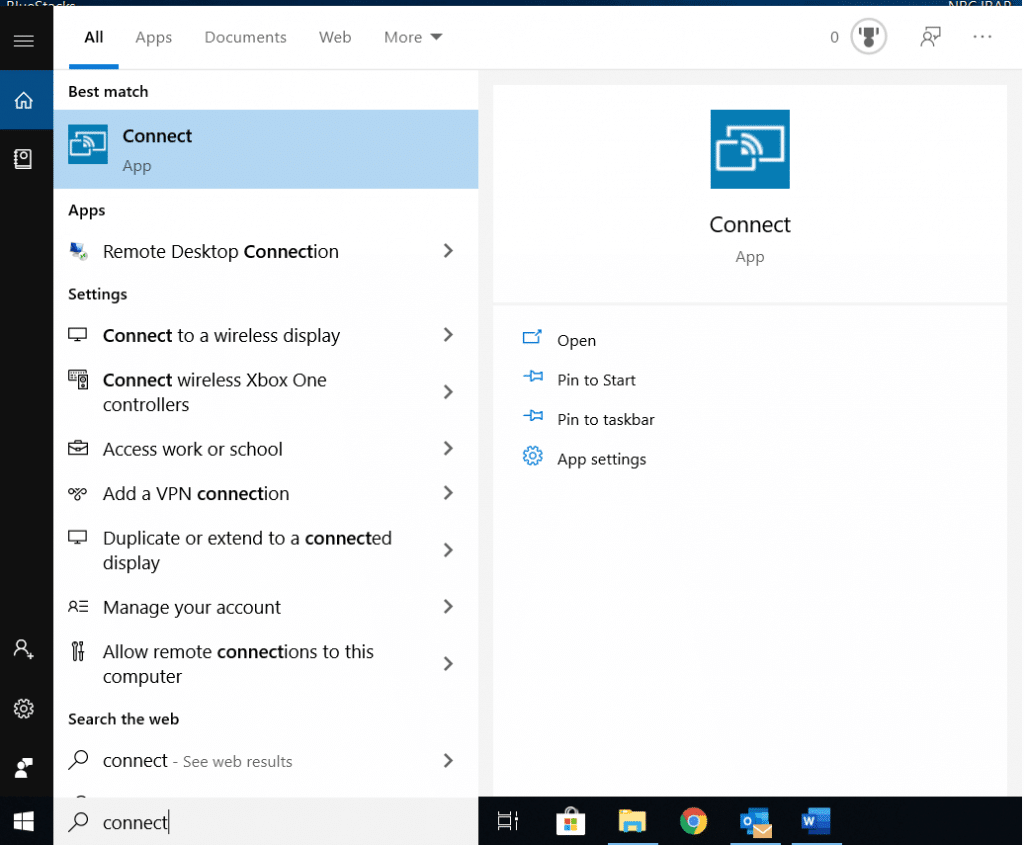
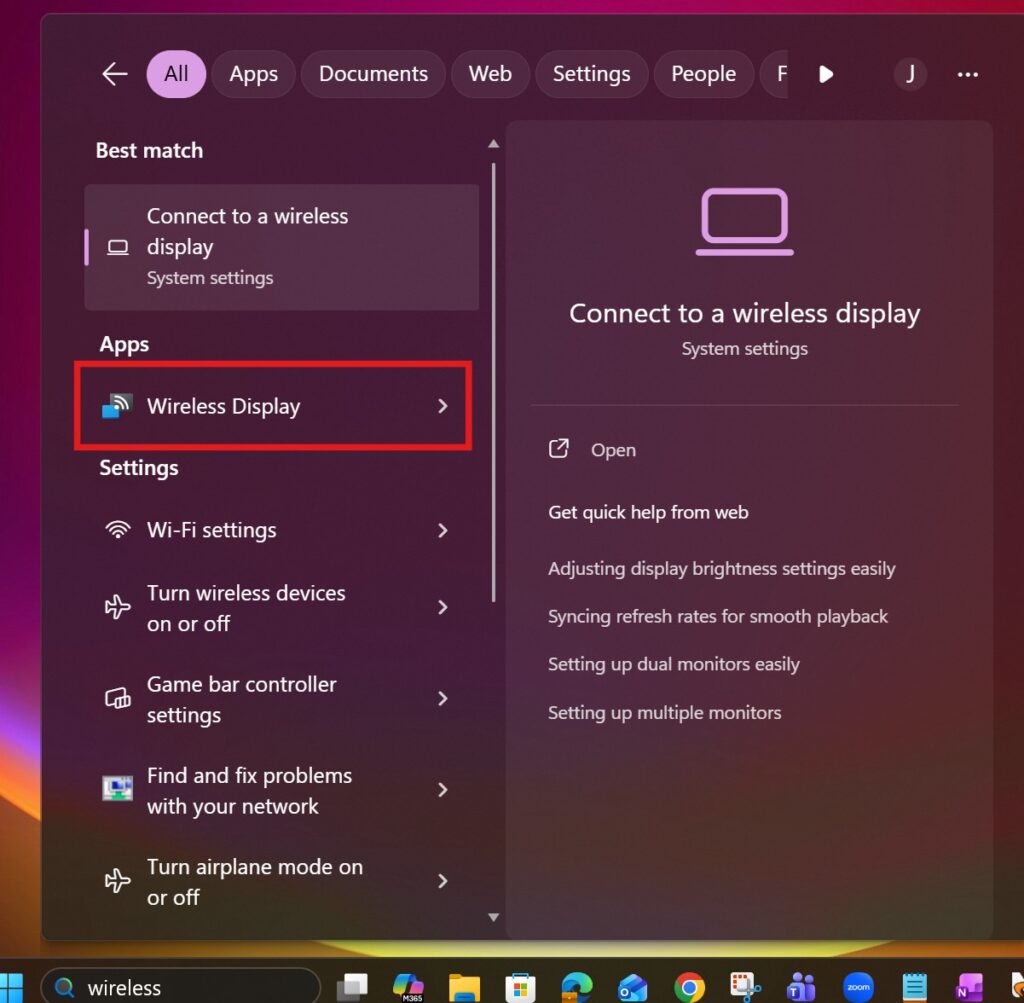
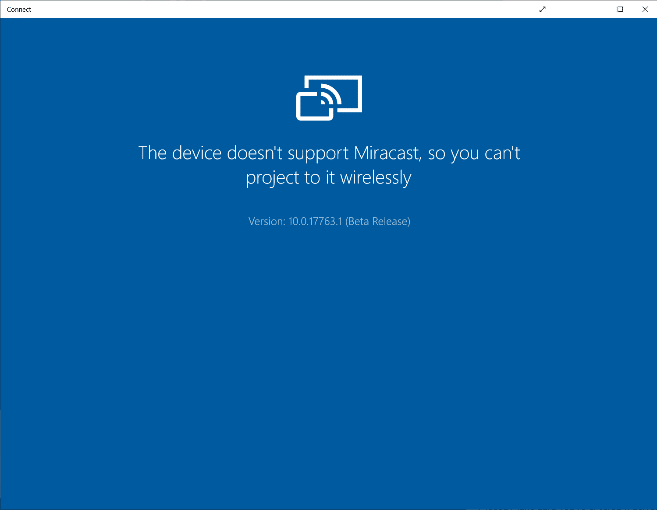
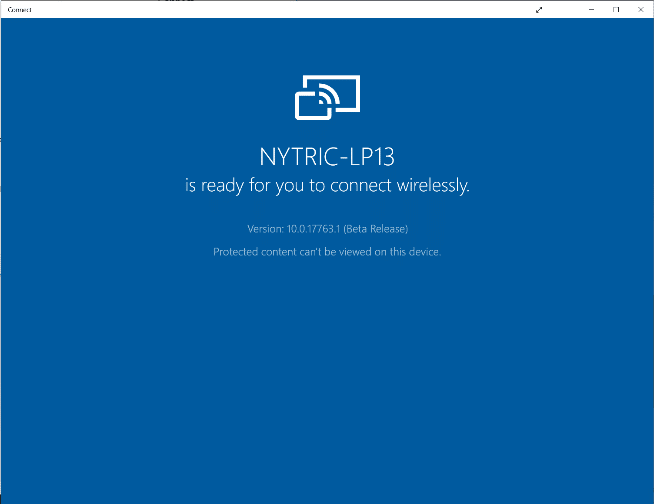
Setup Windows Wireless Display (Connect App) *Important* Refer to the IT Manual to ensure that the network configuration, ports and settings are properly configured.On the Reactiv SUITE PC, configure ports:“Windows Defender Firewall” > “Advanced settings” > “Inbound Rules” > “New Rules”. Select “Port”,Click NextNow select “TCP” and “Specific Port numbers” set it to 7236Click Next and select “Allow the Connection”Click Next and select all 3 boxes “Domain”, Public” and “Private”. Click Next, give a name to the new rule First make sure the Wireless Casting Feature is added to Windows. Settings>System>Optional features>View features. In Added features search bar search for: Wireless Display. If the feature is not found then you must add it by selecting: See available features Search for Wireless Display. Select the feature and add it. For Windows 10 Users Type ‘Connect’ in the search box. Open the app. For Windows 11 Users Type ‘Wireless Display’ in the search box. Open the app. Confirm if this app is able to connect to your mobile device. If this app also does not work, then the PC does not support Miracast. Doc navigation← I see black bars on the sides of my mobile phone mirrored screenMiracast still doesn't work →