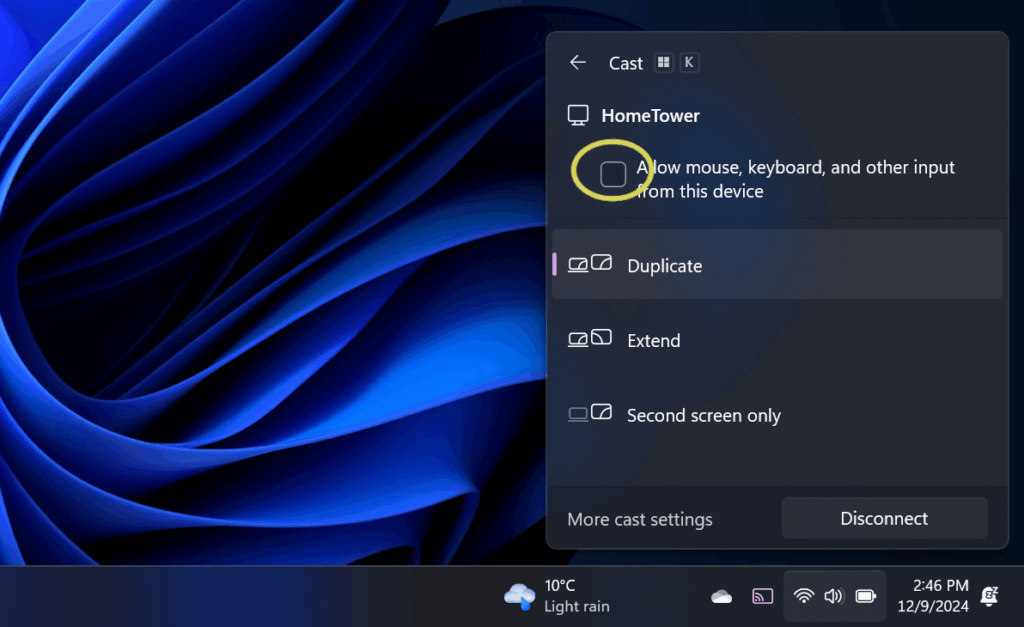
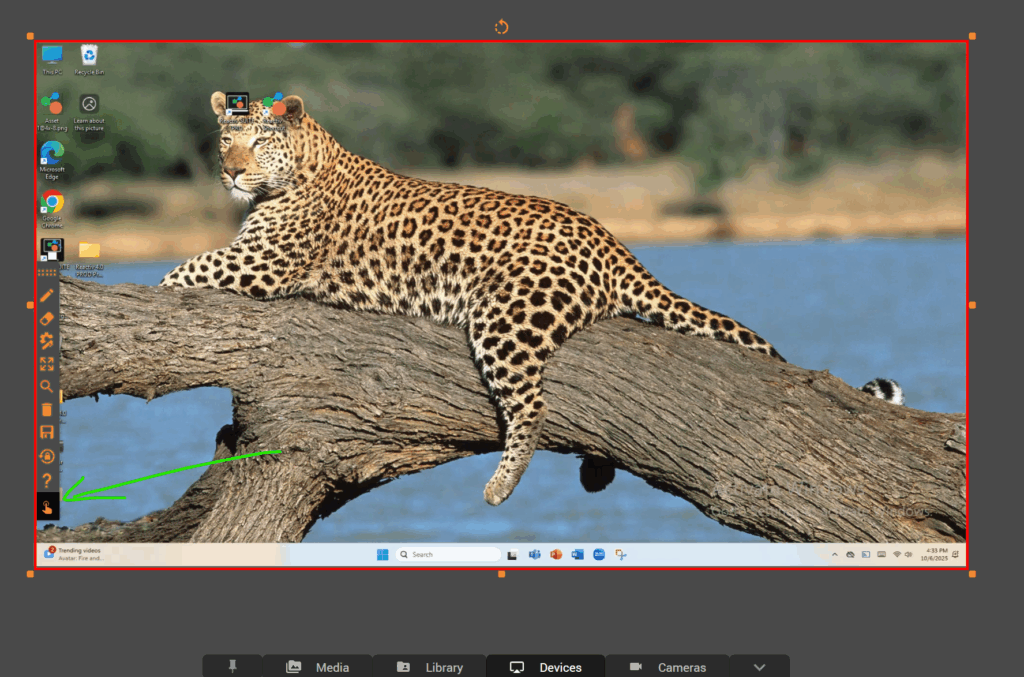
Miracast Touchback Reactiv SUITE WALL supports Miracast Touchback. This allows users to interact with the source device using various inputs like touch and pen. On the source device, use the shortcut Windows key + K to launch Miracast. Connect to the Reactiv SUITE PC and make sure that the “Allow mouse, keyboard and other input” setting is checked. In Reactiv SUITE, select the cast device under the Devices tab.Select the touchback setting on the toolbar at the bottom. The red outline indicates touchback is enabled and the window is pinned. To move/resize the window, de-select the touchback setting. Doc navigation← Miracast still doesn't workChromecast Detailed FAQ (Android Devices) → How can we help? Name Email Subject Message